


Intro to Print Terminology
 | ||||||||||||||||
Print 101 | ||||||||||||||||
Screens represent art files differently than physical prints do. So its common for files to arrive at a commercial printer without the correct formatting or proper design for press ready print. 'Print Ready' means the file has been saved, sized, designed, formatted and properly setup for the printing process. Looks can be deceiving and many files that look great on screen are actually unfit for the printing process in their current state. To avoid delays and any back and forth frustration, familiarize yourself with some basic terminology - it's likely to come in handy during the print production process. | ||||||||||||||||
 | ||||||||||||||||
| Bleeds | ||||||||||||||||
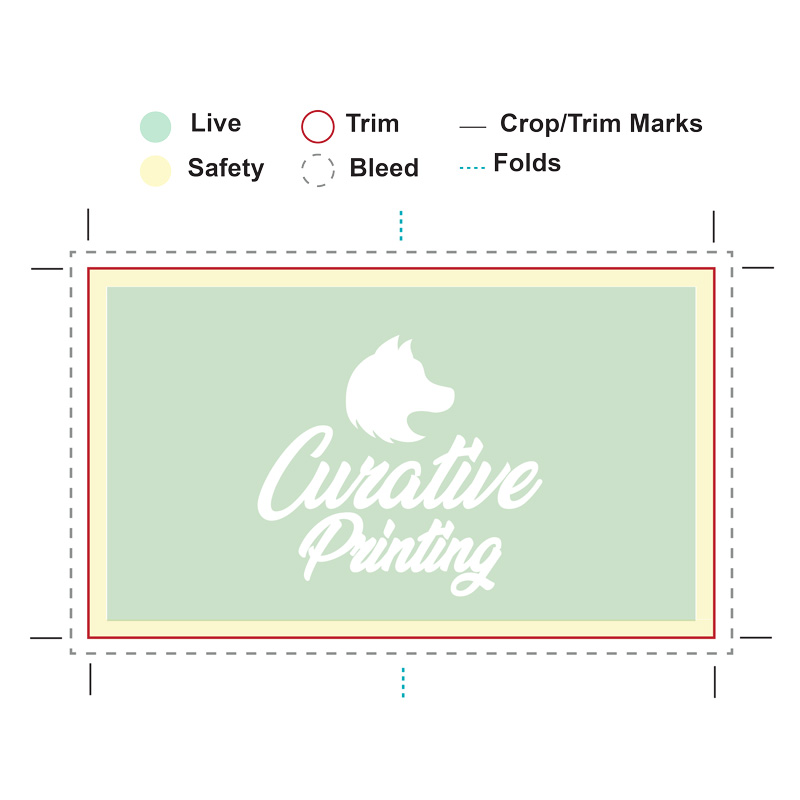
Full bleeds(the grey dashed line, pictured above) ensures that print documents won't end up with empty paper-colored borders. Bleeds are simply an additional space (ours are 1/8") added to all sides of an artboard. This small added space accounts for natural movement of the paper during production and the final trim. If your file contains artwork with color that touches the edges, then yes, bleeds are required. To add bleed settings to your artwork, simply add 1/8" to all sides of your document size. The size of the bleed stays consistent regardless of the files dimensions. If your final print size is to be 5" x 7", adding bleeds will increase the document size to 5.25" x 7.25" in preparation for printing. Width: 5" + .125" left side + .125" right side = 5.25" Height: 7" + .125" top side + .125" bottom side = 7.25" After increasing the document size, pull the color that sits along the original edge of the file across the additional 1/8" empty space on each side. Your artwork, background and any design elements should consistently flow across the bleed area. No stretching - just a smooth continuous flow. To set up Bleeds:
| ||||||||||||||||
| Crop Marks | ||||||||||||||||
Crop marks (solid black corner lines, pictured above), commonly referred to as trim marks, are short, thin, solid, horizontal and vertical lines placed just outside of the trim area at the corner of each page. These small lines when properly added to your artwork will print and act as a guide indicating to the printer precisely where to trim the paper. To set up Crop Marks:
| ||||||||||||||||
| Safety Area | ||||||||||||||||
The safety area (pictured in yellow above) of a file is the 1/8" inside the trim edge. Ideally, there should be no important text or images inside the safety area to ensure that nothing of importance is lost during the printing and trimming process. | ||||||||||||||||
| Resolution | ||||||||||||||||
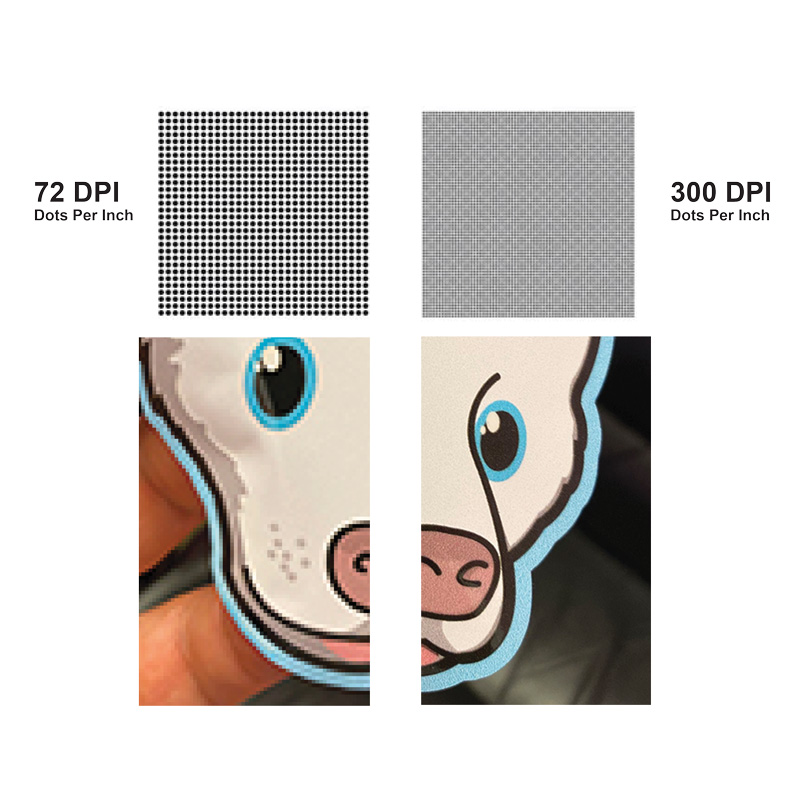
| Print resolution is measured by DPI or dots per inch. This is the number of dots of ink applied per inch onto paper stock during printing. To avoid pixelated, blurry or distorted prints, the standard DPI for images and artwork is 300 DPI. This means 300 tiny dots of ink will be deposited to fill every inch of print. Typical presses cannot accurately reproduce resolutions above 300 DPI, which is why 300 dpi has become the industry standard. | ||||||||||||||||
 | ||||||||||||||||
Helpful guidelines to follow when considering print resolution:
For example: A 72 DPI image will have to decrease in size by 76% to achieve 300 DPI. Becoming less than 1/4 of it's original dimension size which makes finding a web image worthy of printing, a needle in a haystack. So if you need to print a 5" x 7" image, you'll need to find a web image of 21.5" x 29.1" to convert it to 300 DPI print quality. | ||||||||||||||||
| Color Modes | ||||||||||||||||
Setting aside spot colors (for another day), there are two main modes for mixing color in design, RGB and CMYK. | ||||||||||||||||
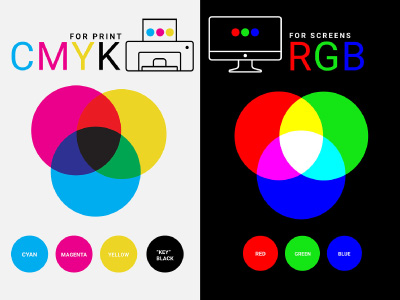 | ||||||||||||||||
RGB color mode is actually light mixed to create and display digital images. RGB colors display vibrantly, but are incapable of reproducing the same colors as CMYK inks. If you print files that were meant to be viewed digitally, the outcome will look much different than what you've viewed on screen. CMYK color mode is actually varying amounts of four primary ink pigment colors mixed to create all print. It's vital that your design files are set in CMYK to print properly. To set up CMYK color:
| ||||||||||||||||
| Fonts | ||||||||||||||||
It's best practice to outline any fonts in your design before sending to print. Outlining fonts means the text no longer reads and edits as text, but instead identifies as shapes, like artwork. This allows a printer to successfully print your project even if they don't have your chosen fonts on hand. | ||||||||||||||||
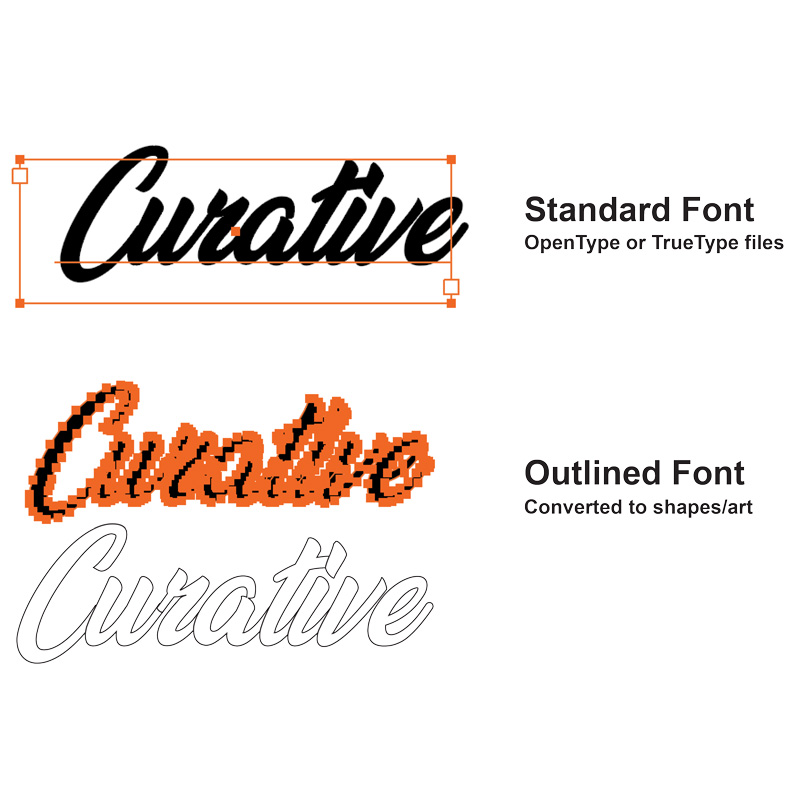 | ||||||||||||||||
The outlining fonts becomes particularly crucial, if you've chosen non-standard, purchased or licensed fonts. If you forget to outline fonts, chances are your file will be returned to you to resolve the missing font issue(s). | ||||||||||||||||
| File Types | ||||||||||||||||
The preferred file type for print is typically PDF files, widely preferred because of their preservation features of fonts, layouts, etc. Other acceptable file types may include EPS, JPG, TIF, PSD depending upon your print provider. | ||||||||||||||||

 Annnnd... We're LIVE! Explore our new website